
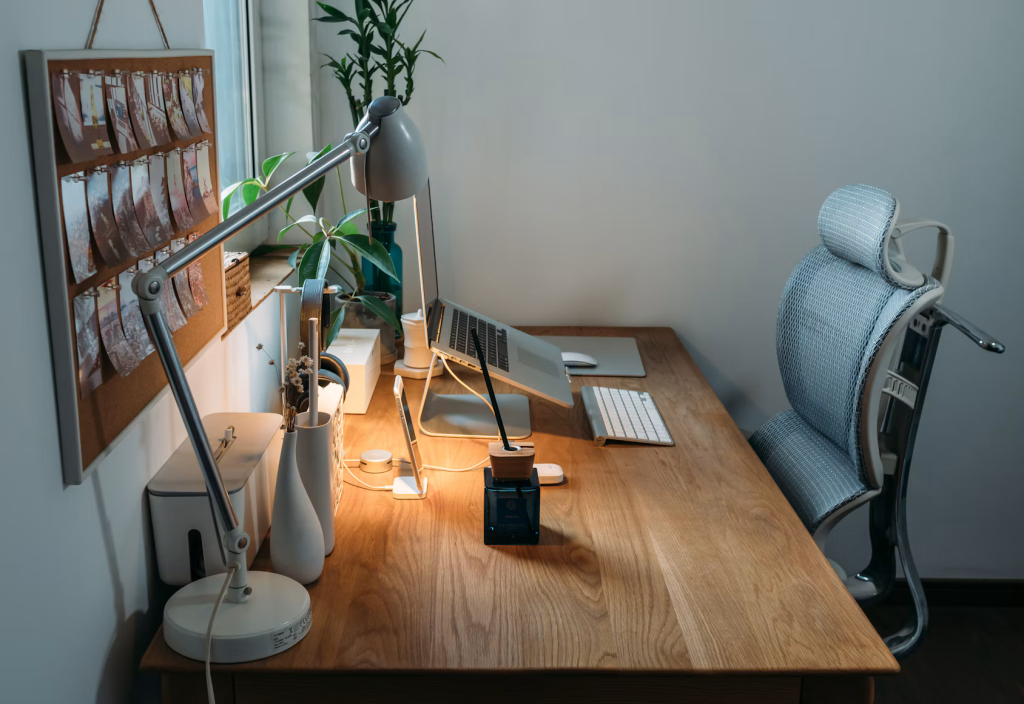
A productive workspace supports your body, reduces distractions, and keeps everyday tools within easy reach. When the setup works well, you spend less time adjusting your position or searching for equipment and more time focused on the task in front of you.
Ergonomics brings those details together. From chair height and monitor placement to lighting and software shortcuts, each choice affects how comfortably and efficiently you work. A thoughtful setup can benefit a dedicated home office, a shared commercial space, or even a compact study corner.
Beyond the Desk: What Ergonomics Means
Ergonomics is the practice of fitting a workspace to the person using it. That includes physical factors such as posture, reach, and movement, along with cognitive factors such as screen layout, distractions, and mental workload.
Start by looking at how you complete a normal task. If sending an email requires you to lean forward, turn repeatedly toward a second screen, and stretch for the mouse, the workspace creates small points of friction. Those movements may seem harmless, but repeating them throughout an eight-hour day can lead to discomfort and lost concentration.
The room also matters. Glare can make text harder to read, background noise can interrupt complex work, and poor placement of frequently used items can break your rhythm. Even the position of your phone affects how often your attention shifts away from the main screen.
Treat ergonomics as an ongoing process. Your needs may change when you switch projects, add a monitor, or start sharing a workstation. Observe where discomfort or delay appears, adjust one element and see how it feels over several days. This practical cycle works better than copying a generic workstation diagram without considering your height, tasks, or available space.
The Science of Comfort and Focus
Physical discomfort competes for attention. A monitor that sits too low may cause you to angle your head downward, while a keyboard placed too far away encourages reaching. As tension builds, part of your attention stays fixed on the discomfort. That makes detailed tasks, such as editing code or checking a spreadsheet, harder to sustain.
Comfort supports longer periods of steady concentration. Workplace comfort connects ergonomic design with posture, movement, and everyday performance. The key is a neutral working position in which your joints feel relaxed, and your equipment doesn’t force awkward angles.
Place the top portion of your monitor close to eye level and keep the screen roughly an arm’s length away. Exact placement depends on screen size, vision, and the type of work you do, so adjust it until text is clear without leaning forward. Your shoulders should remain relaxed while typing, with the keyboard and mouse close enough that your elbows stay near your sides.
Comfort also depends on variation. Remaining in one position for hours can feel tiring even when that position looks correct. Change posture regularly, stand during a call when practical, and take brief movement breaks. These changes give your eyes and muscles a reset without disrupting the workday.
Choosing the Right Seating for Performance
A chair should support the way you actually work. Someone who spends an hour at a desk each evening may have different needs from a designer who sits for most of the day. Before comparing office chairs, measure the space and identify the adjustments that will matter during your typical work session.
Seat height is a useful starting point. Set it so your feet rest flat on the floor and your knees sit at about hip level. If raising the chair is necessary to reach the desk comfortably, use a stable footrest to support your feet. The seat should also provide enough depth to support your thighs while leaving a small gap behind your knees.
Look for lumbar support that follows the lower back without pushing you into an exaggerated curve. Adjustable armrests can help keep the shoulders relaxed, though they shouldn’t prevent the chair from moving close to the desk. A swivel base and suitable casters also make it easier to reach nearby items without twisting.
Test the controls before settling into a routine. You should be able to change the height, recline, and arm positions without struggling with hidden levers. Once adjusted, sit back against the backrest and bring your equipment toward you. A good chair can’t compensate for a keyboard that remains out of reach or a monitor placed off to one side.
Integrate Tech for Optimal Workflow
Technology can remove unnecessary actions from a workday, but too many poorly arranged devices create fresh distractions. Begin with the tools you use every hour. Connect essential peripherals, route their cables, and place them where your hands can reach them without lifting your shoulders or rotating your torso.
A laptop stand can raise the screen to a more comfortable height, though it should usually be paired with an external keyboard and mouse for longer sessions. If you use two monitors, place the primary screen directly in front of you. When both screens receive equal use, position them close together with the inner edges centered in your field of view.
Software deserves the same attention as physical hardware. Learn keyboard shortcuts for actions you repeat dozens of times, such as switching tabs, opening search, or muting a call. Use virtual desktops to separate communication tools from focused work, and disable nonessential notifications during demanding tasks. These changes reduce the number of decisions and hand movements needed to finish routine work.
Keep charging cables, adapters, and hubs secured beneath or behind the desk. A simple cable tray can prevent cords from catching on your feet or restricting equipment placement. Technology should fit your workflow instead of forcing your body to adapt to awkward device positions.
Small Changes, Big Impact
A full workspace renovation may be unnecessary. Small adjustments often address the most obvious causes of strain and delay, particularly when you make them in response to a specific problem. If your neck feels tired late in the day, check screen height. If your wrist bends while using the mouse, move it closer and confirm that the desk surface isn’t too high.
Use this quick workstation check:
- Rest both feet on the floor or a stable footrest
- Keep the keyboard and mouse close to your body
- Center the main monitor in front of your seat
- Reduce glare from windows and overhead lights
- Place frequently used items within easy reach
- Leave enough open space to change position comfortably
Review the setup at different times of day. Morning sunlight may produce glare that isn’t visible during an afternoon check, while fatigue late in the day may reveal that your screen or chair position needs further adjustment. Following basic workplace ergonomics principles can help you improve screen height, seating, and desk layout, but personal observation remains valuable because no two people work in exactly the same way.
Movement completes the setup. Use natural pauses, such as the end of a call or a finished task, as cues to stand, look across the room, or walk briefly. These breaks don’t need to be long enough to derail concentration.
Pay attention to the first repeated annoyance you notice tomorrow. A screen that needs raising, a cable that catches your foot, or a mouse that sits too far away gives you a specific place to begin, and fixing that one detail may improve every hour that follows.