
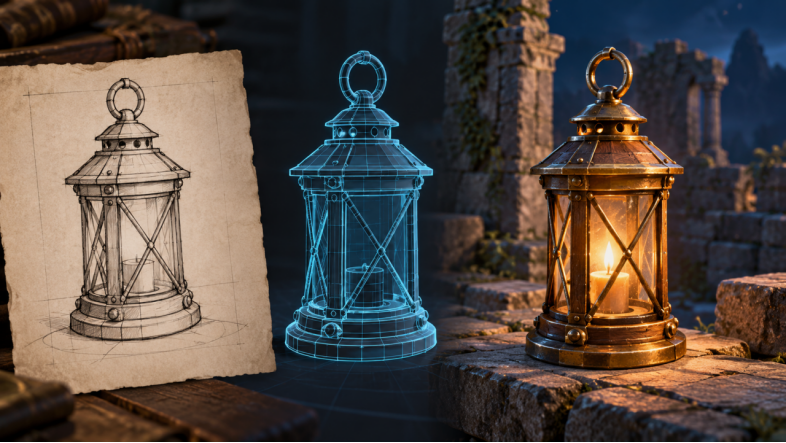
A small game prop is a useful first test for an AI-assisted asset workflow. You can judge a lantern or equipment case without dealing with character skeletons or animation. N4D can generate a three-dimensional model from a reference image or text description, giving you a starting asset to inspect, export and test in a scene.
If you are learning how to import 3D models into Unreal Engine 5, begin with that one object and a simple test level. A successful import means more than seeing a thumbnail in the Content Browser. You want the prop to have sensible proportions, usable materials and the behaviour required by its role in the game.
Choose an object with a clear job
For this example, imagine a lantern placed on a stone ledge. Its first job is to look convincing from the player’s expected viewing distance. It does not need a moving handle, an interactive door or a simulated flame for the initial import test. Those features can be considered separately once the static object works.
Use your own design or a reference you are entitled to use. Give the object a recognisable outline and avoid making tiny decorative pieces essential to its identity. A shape that reads well at gameplay distance is easier to evaluate than one whose appeal depends entirely on an extreme close-up.
Inspect the generated model before exporting. Rotate it to check the back, underside and joins between parts. If the handle merges unexpectedly into the roof, resolve that issue before troubleshooting Unreal. Otherwise, a source-geometry problem may be mistaken for an import setting that needs adjustment.
Put the export into a clean folder
N4D supports several export formats, including FBX. For this workflow, use an FBX export and keep any accompanying texture files with it. Extract a downloaded archive before selecting individual files for import. Preserve an untouched copy so you can return to the same starting point if later experiments change the working files.
Check what the export actually contains. A mesh file and separate image maps have different roles: the mesh describes the object’s shape, while the maps help describe its surface. A preview render is not automatically a texture that belongs on the model. Keep the filenames readable instead of renaming everything before you understand the package.
Write down an intended size for the lantern. This might be a 30-centimetre-tall background prop, rather than an object intended for a close-up interaction. That decision gives you a concrete reference when the asset enters the engine and helps distinguish a scale problem from a camera perspective.
Import into a dedicated project folder
Open your UE5 project and choose a destination in the Content Browser or Content Drawer. Create a small folder for the test asset rather than placing files beside unrelated content. Use the available import command and select the exported model. The import dialog can differ with the UE5 version, enabled importer and file type, so do not expect every installation to show identical controls.
For a non-animated lantern, choose the settings that import a static mesh. Review what the importer intends to create before proceeding, especially when a source file contains multiple objects or materials. Avoid changing a large group of unfamiliar options simply because they are available.
Once the import completes, identify the mesh asset and the material and texture assets that were created. If you receive a warning, read its specific message before importing the same file repeatedly. A missing texture reference and an invalid mesh require different responses, even if both leave the initial result looking incomplete.
Check the model before dressing the scene
Open the imported asset in the Static Mesh Editor. Start with the outline, surface continuity and orientation. A missing or inverted-looking surface deserves investigation in the source model; adding a more elaborate material will not repair the underlying shape.
Size and placement
Unreal’s default distance convention is one unit per centimetre. Compare the lantern with a known-size object or a measured reference in the level. Check the imported dimensions instead of relying on how large it looks in the preview window. If its size is wrong, establish whether the cause is the source dimensions or an import conversion.
Place the prop on a simple flat surface and inspect its base. A sensible pivot makes moving and rotating the object easier. For a lantern that stands on a ledge, a pivot associated with the base is often more convenient than one far away from the geometry. If you correct the source, keep a note of the change for later exports.
Materials and texture connections
Look at what the importer actually connected. Basic material information may transfer, but a complete set of surface maps should not be assumed to appear correctly without inspection. Open the material and check the appropriate inputs for the maps supplied with the asset.
Base Color describes the main surface colour. Roughness affects how broad or sharp reflections appear, while Metallic describes the metallic character of the surface. Normal maps add surface detail to shading. These inputs serve different purposes, so connecting a map to a convenient empty slot can produce an attractive but misleading result.
For the lantern, compare its brass frame and painted or wooden sections under neutral light. If everything looks like polished metal, inspect the material assignment and map connections before changing the scene lighting. Keep an untextured view available as a separate check on the geometry.
Give collision a deliberate purpose
The visible mesh and its collision representation are separate concerns. Decide whether the lantern should block the player, respond to interactions or simply decorate a distant shelf. That role determines what collision behaviour you need to test.
For a simple blocking prop, inspect or add an appropriate simplified collision shape in the Static Mesh Editor. A basic shape may be enough for the first test. Avoid reproducing every small visual detail in collision unless the game’s interaction needs justify it.
Run the level and test the intended behaviour. Check that the object does not create an unexpected invisible obstacle around the ledge. If you later add physics or pickup behaviour, treat that as another implementation task rather than assuming a successful static import has already solved it.
Test at the distance players will see
Build a modest scene with a floor, a ledge and understandable lighting. Walk or move the camera past the lantern at the expected distance. Check whether its silhouette remains recognisable and whether small surface details contribute anything useful.
A model can look good in an isolated preview yet feel out of place beside other assets. Compare its proportions and visual detail with the surrounding environment. If performance becomes a concern, measure it in the target project and device context before choosing an optimisation strategy. More visible detail does not automatically make a better game prop.
Keep a record of the working result
Save the source version, export format, intended dimensions and the settings that produced a useful import. A short note is enough for a personal project. It becomes valuable when you regenerate the prop, revise its materials or move it into another level.
N4D can help you explore the initial object, while a controlled UE5 test shows what further work it needs. Start with one static prop, confirm each stage and keep the successful files together. That gives you a repeatable route from a generated concept to an asset you understand inside your own project.